

Adding End-to-End Testing to the TaskAdmin web app
Prerequisites
1) Docker Desktop installed
2) GitHub Account
3) Complete the previous step.
Even though we are in a new era with AI Coding Agents, Software Engineering best practices are valid and will still be valid in the years ahead. Traditionally creating and maintaining automated tests in our application has been very time-consuming but essential for quality and for safe changes. Now with the advent of Coding Agents it’s cheaper and much faster to create them.
In the first step we created a simple TaskAdmin web app with OpenCode. Now we are going to add end-to-end Testing to it.
We created a User Story with 4 scenarios for the Acceptance Criteria that you can check in this link. Each scenario will be an end-to-end test.
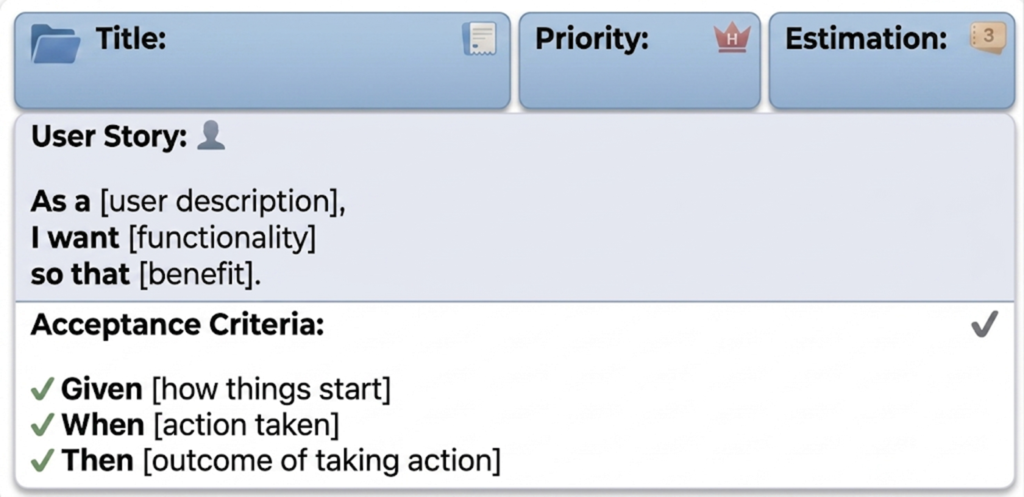
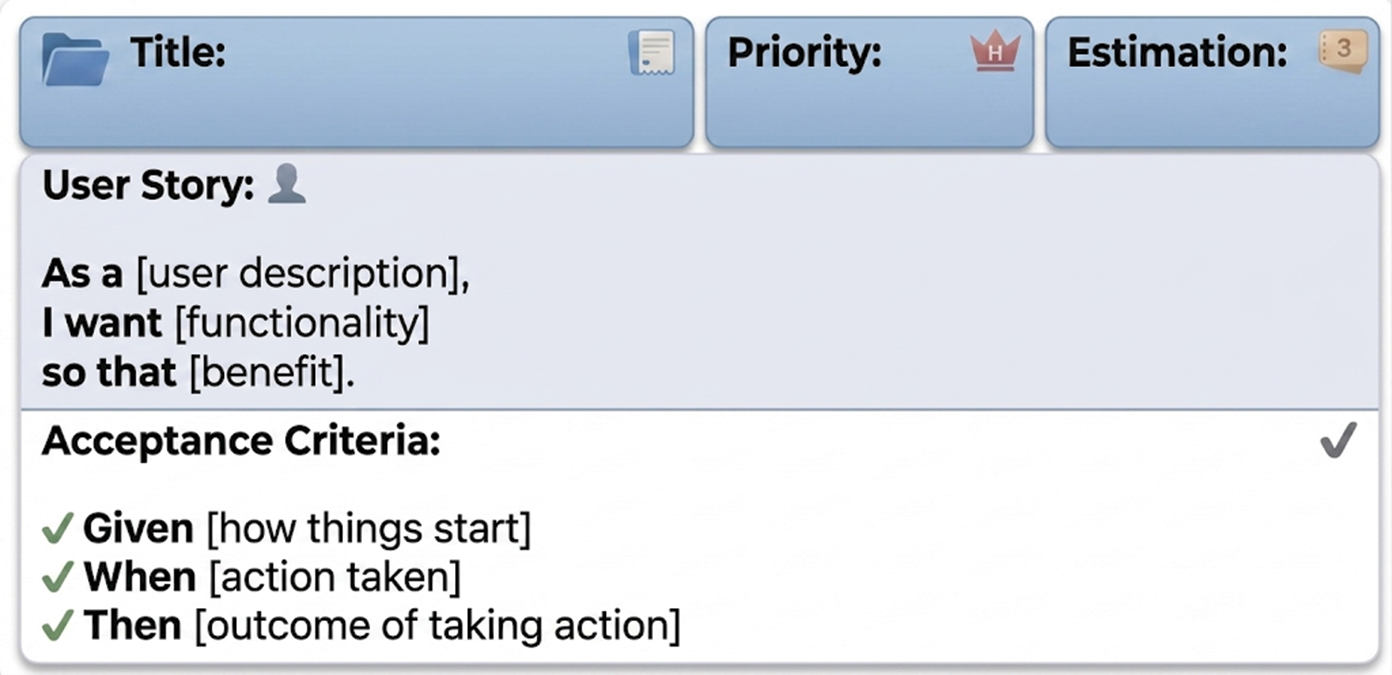
The full User Story is as follows:
Feature: Task Management CRUD
  As a user
  I want to manage my tasks
  So that I can create, view, update, and delete tasks

  Scenario: Create a new task
    Given I am on the task list page
    When I click the "Add Task" button
    And I fill in "Title" with "Write project report"
    And I fill in "Description" with "Document the findings of the Q3 review"
    And I select "High" as the priority
    And I click the "Save" button
    Then I should see a success message "Task created successfully"
    And I should see a task titled "Write project report" in the task list

  Scenario: View a task
    Given there is a task titled "Write project report" in the task list
    When I click on the task titled "Write project report"
    Then I should see the task details page
    And I should see "Write project report" as the title
    And I should see "Document the findings of the Q3 review" as the description
    And I should see "High" as the priority

  Scenario: Update a task
    Given there is a task titled "Write project report" in the task list
    When I view the task titled "Write project report"
    And I click the "Edit" button
    And I change the "Status" to "Completed"
    And I click the "Save" button
    Then I should see a success message "Task updated successfully"
    And the task titled "Write project report" should show status "Completed"

  Scenario: Delete a task
    Given there is a task titled "Write project report" in the task list
    When I view the task titled "Write project report"
    And I click the "Delete" button
    And I confirm the deletion
    Then I should see a success message "Task deleted successfully"
    And I should not see a task titled "Write project report" in the task list
If you completed step 1 you should have Docker and the container with the web app.
From the Terminal run:
docker desktop start
Let’s start the container, run:
docker start opencodeEnter the container’s shell
docker exec -it opencode /bin/shNow that you are in the Linux shell run:
cd /home/taskadmin
opencode
Execute this prompt:
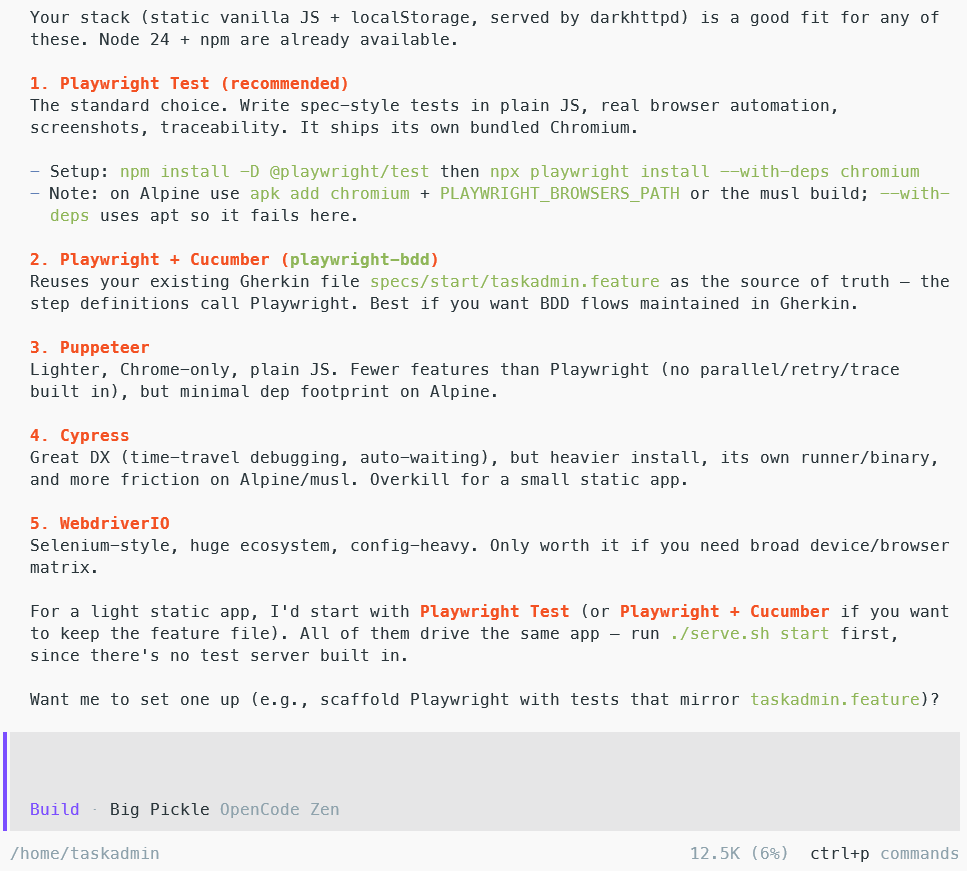
Give me options for end-to-end testing
Response should be similar to:
Switch to Plan mode (Tab in v1, Shift+Tab in v2):

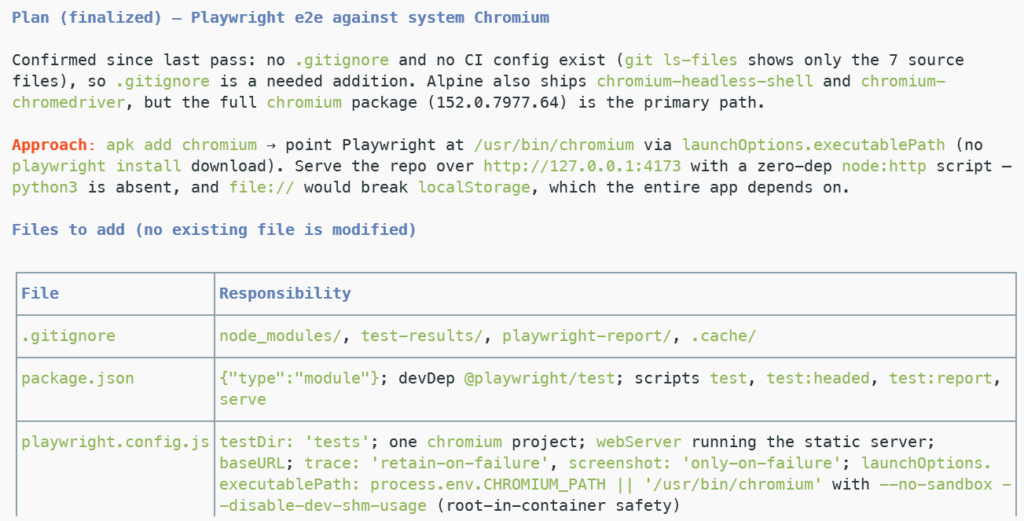
Create a plan to implement Playwright in the simplest way
The plan should be similar to:
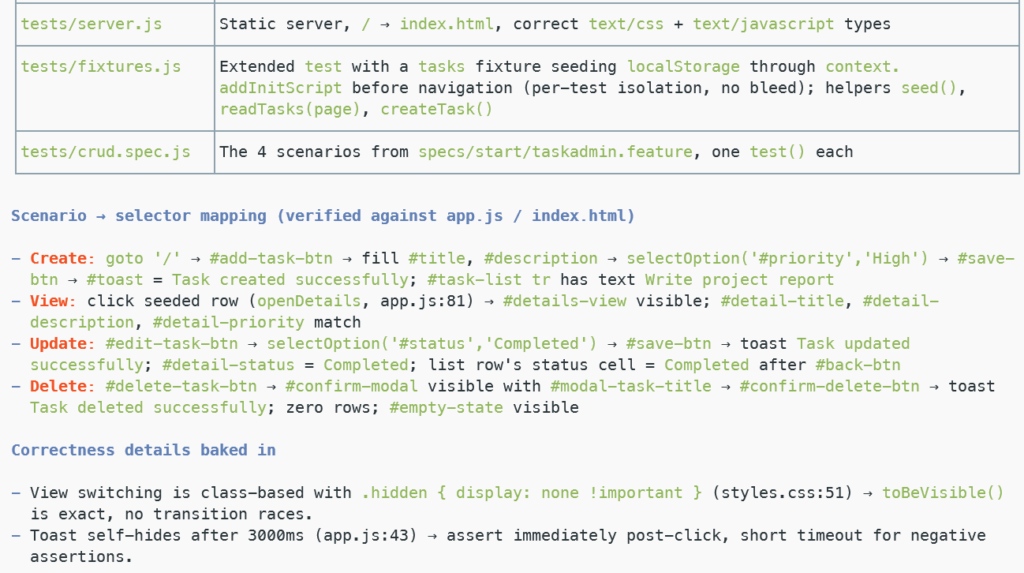
First create a branch. Then go ahead with the plan.
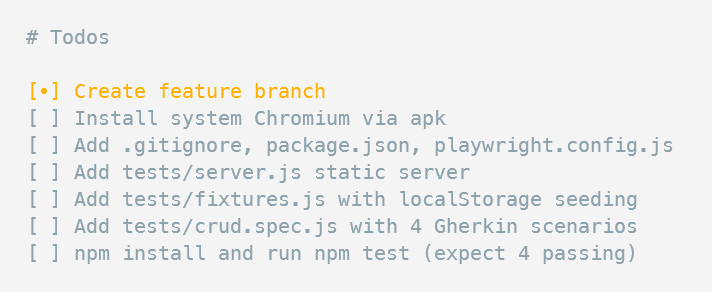
The Agent will create a Todo list like this. Review it and proceed.
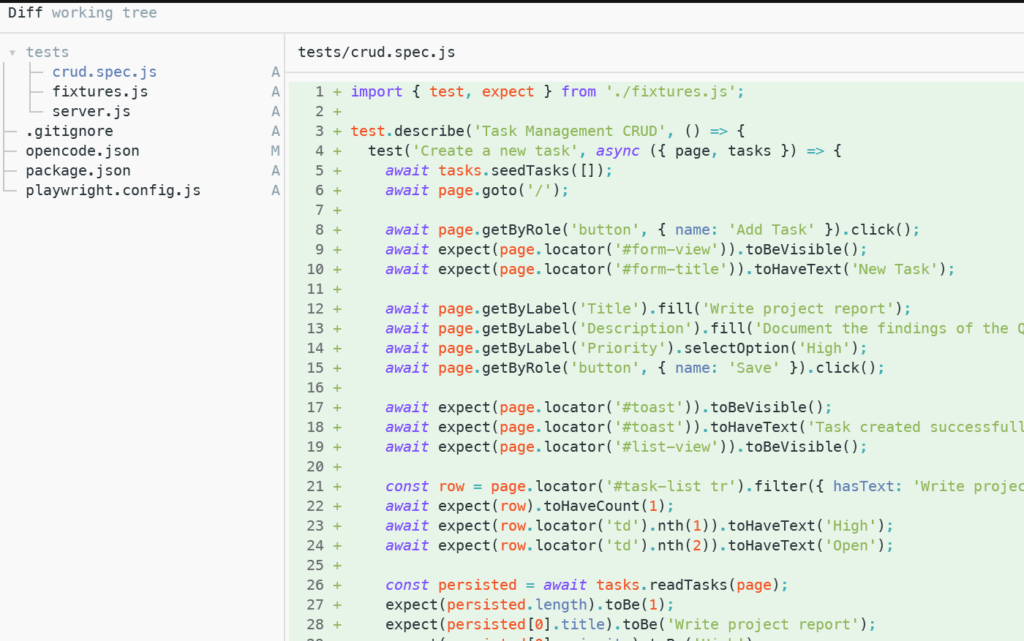
After it finishes, review all files with /diff
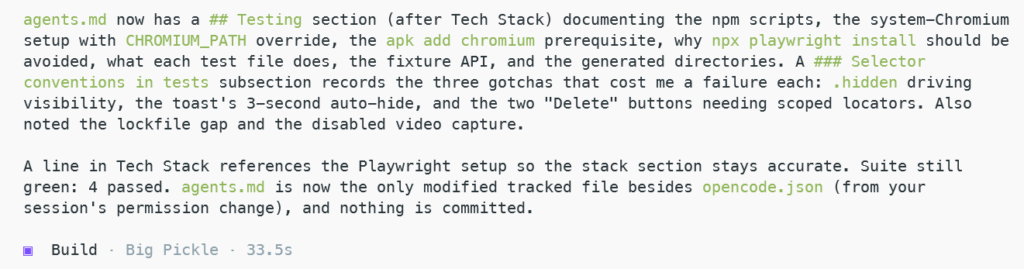
Update AGENTS.md with relevant information
To run tests from the shell, first exit from OpenCode with the command:
/exit
Then in the shell run:
apk add chromium
npm test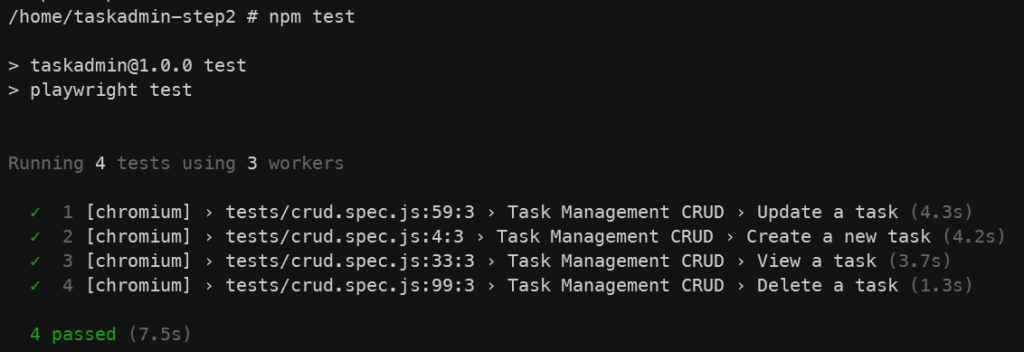
Back to OpenCode
opencodeCommit and merge
Remove branch
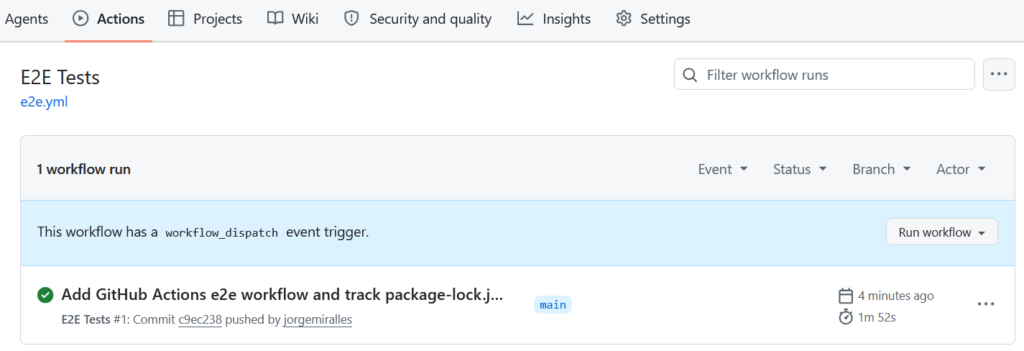
Now let’s set up GitHub Actions to run the test as a CI/CD pipeline
Once it finishes, it should look like this file
On GitHub, it should look similar to:
Final project code at: https://github.com/jorgemiralles/taskadmin-step2
